Threadline documentation
How to set up and use Threadline for Jira, which sends filtered, threaded Jira and Jira Service Management notifications to Google Chat spaces. Threadline is built by Pledona, an independent Atlassian Marketplace Partner, and runs entirely on Atlassian Forge.
On this page: Requirements · Install · Create a Google Chat webhook · Add a route · Projects and events · Filters · Threads, batching, digests and quiet hours · What a message shows · Test messages · Delivery log and retries · Managing routes · Who can manage it · Limits · Data and privacy · Help
Requirements
- Jira Cloud (Software, Work Management or Service Management).
- A Google Workspace Business or Enterprise account. Free Gmail accounts can't create incoming webhooks.
- Your Google Workspace admin must allow users to add apps and webhooks to Google Chat.
- A Jira administrator to install the app and set up routes.
Install
Threadline is coming soon to the Atlassian Marketplace and is pending approval.
A Jira admin installs it from the Atlassian Marketplace. It is free for up to 10 users, then $0.80 per user per month, billed through Atlassian. After install, the app's admin page is at Jira Settings ▸ Apps ▸ Google Chat notifications. It has three tabs: Routes, Delivery log and Help.
Create a Google Chat webhook
- Open Google Chat on the web and go to the space that should receive Jira updates.
- Click the space name, then choose Apps & integrations ▸ Webhooks ▸ Add webhook. Name it, for example “Jira”.
- Copy the webhook URL. It looks like
https://chat.googleapis.com/v1/spaces/…/messages?key=…&token=….
Treat the webhook URL like a password: anyone who has it can post to the space. Never send it to us.
Add a route
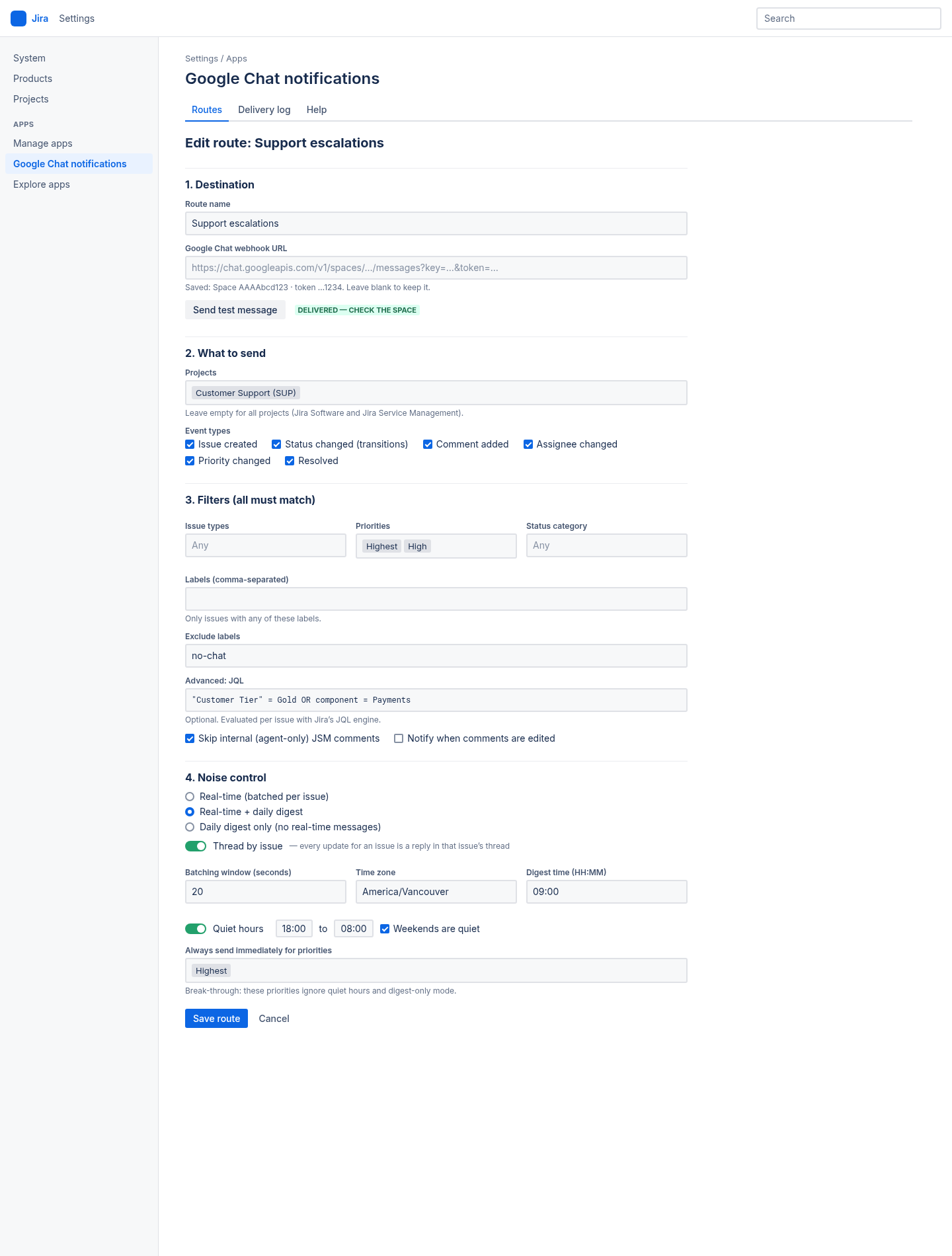
A route sends matching Jira events to one Google Chat space. Each route has its own projects, events, filters and schedule, so each team can get only what matters to it in its own space.
- In Jira Settings ▸ Apps ▸ Google Chat notifications, open the Routes tab and click Add route.
- Under 1. Destination, enter a Route name (for example “Support escalations”) and paste the Google Chat webhook URL.
- Click Send test message to check the space receives it. This works before you save.
- Choose projects and events under 2. What to send, add any 3. Filters, and set 4. Noise control. Each is explained below.
- Click Save route.
The URL must be an https address on chat.googleapis.com with its key and token parameters. If it isn't, the editor tells you what is wrong. After saving, the full URL is never shown again: the route only shows the space ID and the last four characters of the token. When you edit a route, leave the webhook field blank to keep the saved URL, or paste a new one to replace it.
Projects and events
- Projects: pick one or more projects, or leave the field empty to include all projects (Jira Software and Jira Service Management).
- Event types: Issue created, Status changed (transitions), Comment added, Assignee changed, Priority changed and Resolved. Pick at least one. New routes start with Issue created, Status changed, Comment added and Resolved.
- Edits to other fields, such as the description, don't send a notification.
- Comment edits are ignored unless you tick Notify when comments are edited.
Every route is checked on its own, so one Jira change can go to several spaces when several routes match it.
Filters
All filters you set must match for a notification to be sent. Empty filters are ignored.
| Filter | What it does |
|---|---|
| Issue types | Only issues of these types, for example Bug or Incident. |
| Priorities | Only issues with these priorities. |
| Status category | Only issues whose current status is in To Do, In Progress or Done. |
| Labels (comma-separated) | Only issues that have any of these labels. |
| Exclude labels | Never notify for issues with any of these labels, for example no-chat. |
| Assignees | Only issues assigned to these people. |
| Advanced: JQL | Optional JQL, checked against each issue with Jira's JQL engine, for example component = Billing AND "Customer Tier" = Gold. Leave out ORDER BY; the JQL is only used to match issues. Up to 1000 characters. |
| Skip internal (agent-only) JSM comments | On by default. Internal Jira Service Management comments are not posted to Google Chat. |
Comments restricted to a group or project role are not posted. Filters are checked against fresh issue data from Jira when the message is about to be sent. If the JQL is invalid, the delivery log shows the JQL error.
Threads, batching, digests and quiet hours
Delivery mode
- Real-time (batched per issue): send changes as they happen, batched per issue.
- Real-time + daily digest: send changes as they happen, and also a daily summary.
- Daily digest only (no real-time messages): send only the daily summary.
Thread by issue
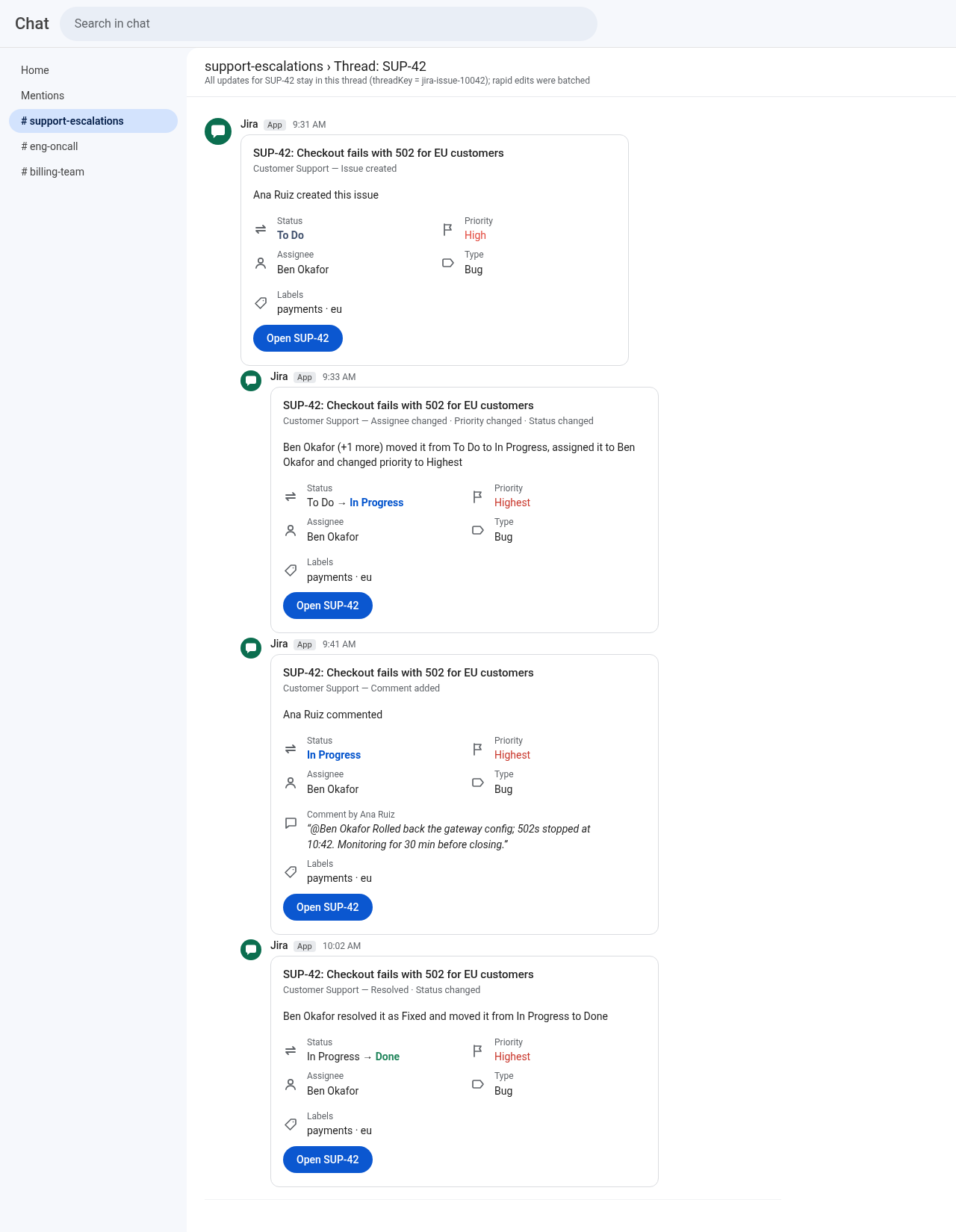
On by default. Every update about an issue is posted as a reply in that issue's own Chat thread, so a busy space stays readable. The thread is tied to the issue itself, so it stays the same even if the issue moves to another project and gets a new key. Turn it off to post each update as a new message. Digests and test messages are always posted as new messages.
Batching window
Rapid edits to one issue within the Batching window (seconds) become a single message. The default is 20 seconds, the range is 0 to 300, and 0 sends immediately. Within a batch, A to B to C becomes A to C, and a change that is undone (A to B and back to A) is not sent at all. If Jira delivers the same change twice within 10 minutes, it is posted once.
Daily digest
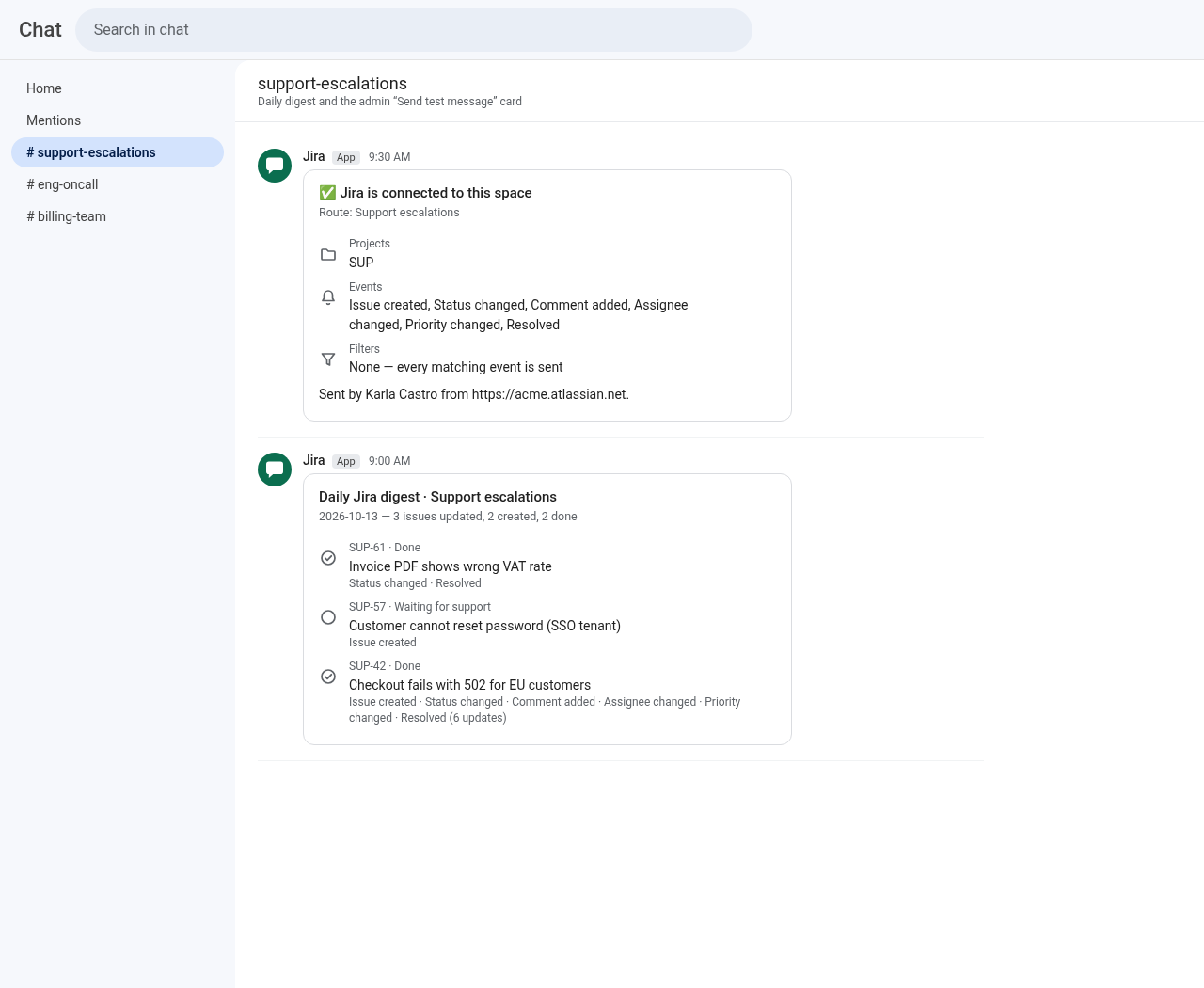
- Set the route's Time zone and Digest time (HH:MM), in 24 hour time. The app checks once an hour, so the digest arrives during the hour of your digest time.
- The digest card is titled “Daily Jira digest” with the route name, counts how many issues were updated, created and done, and lists up to 30 issues, newest first, with key, status, summary and what changed. If there are more, a button opens them in Jira (up to 100 more).
- If nothing happened, no digest is sent. If sending fails, the items are kept for the next run.
- For routes that use a digest, Send digest now on the Routes tab sends it right away.
Quiet hours and break-through priorities
- Turn on Quiet hours: hold non-urgent updates and set From and Until (HH:MM, in the route's time zone). Overnight windows such as 18:00 to 08:00 work. Tick Weekends are quiet to hold updates all Saturday and Sunday too.
- In real-time mode, updates held during quiet hours are sent as one “While you were away” digest within an hour after quiet hours end. In the digest modes, they go into the next daily digest.
- Always send immediately for priorities (break-through): issues with these priorities, for example Highest, ignore quiet hours and digest-only mode and are sent right away.
What a message shows
Each notification is a Google Chat card with:
- The issue key and summary, plus the project name and event types.
- A sentence saying who did what, for example “Ana moved it from To Do to Done”. Batched changes are combined into one sentence.
- Status (with the from and to status on transitions), assignee, priority and issue type.
- For comments, an excerpt of the latest comment (up to 280 characters) with its author.
- Up to 8 labels.
- An Open button that links to the issue in Jira.
Test messages
Use Send test message in the route editor (it works before you save) or Test next to a saved route. The test card says “Jira is connected to this space” and lists the route's projects, event types and filters, and your Jira site. If it fails, the editor shows why, for example that the webhook was removed or your Workspace admin does not allow incoming webhooks. Test messages also appear in the delivery log.
Delivery log and retries
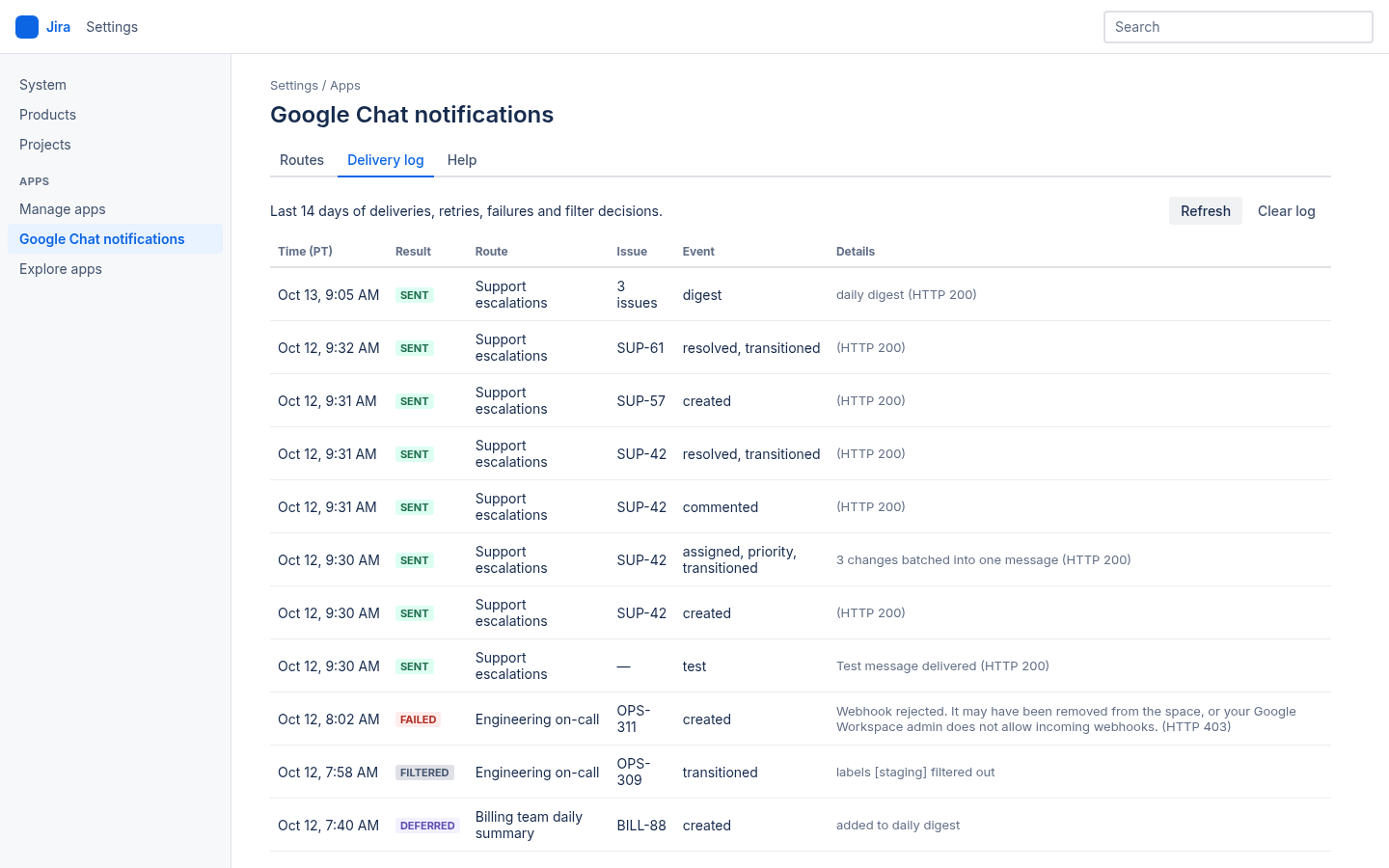
The Delivery log tab lists the last 14 days of deliveries, retries, failures and filter decisions, newest first, so you never have to wonder why something was or wasn't sent. Columns: Time, Result, Route, Issue, Event and Details.
| Result | Meaning |
|---|---|
| sent | Posted to Google Chat. Details show the HTTP status and, for batches, how many changes were combined. |
| retrying | Google Chat was rate limiting, temporarily unavailable or unreachable. The app will try again. |
| failed | Not delivered. Details say why in plain language, for example that the webhook or space was not found. |
| filtered | A filter didn't match. Details name it, for example the label or priority that was filtered out. |
| deferred | Held for the daily digest or for the end of quiet hours. |
The tab shows the newest 100 entries. Use Refresh to reload and Clear log to delete it.
Retries: when Google Chat rate limits a message or is temporarily unavailable, or the network fails, the app retries up to 6 times with growing delays (up to 15 minutes), and follows Google's own retry delay when it gives one. Messages to the same space are sent one at a time to stay within Google Chat's limit of about one message per second per space. A rejected webhook, a deleted space or a message format error is not retried; the log explains what to fix.
Managing routes
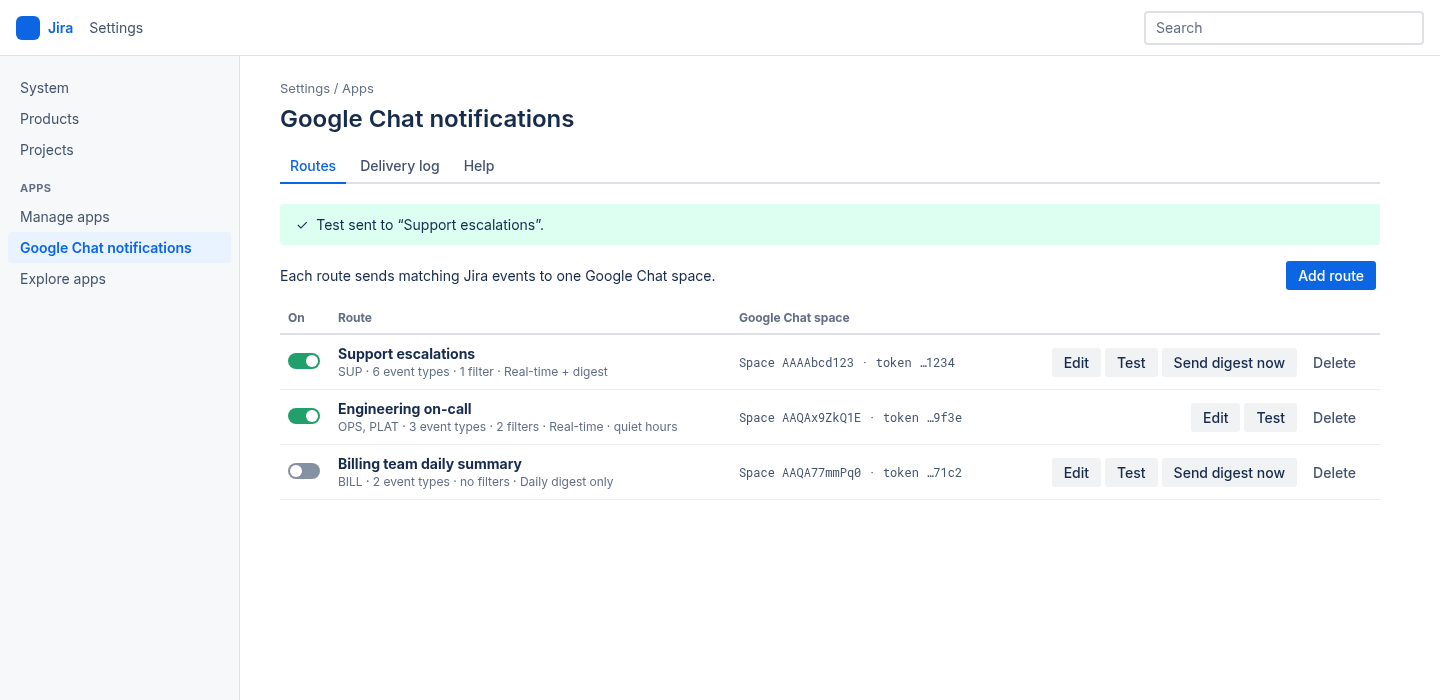
The Routes tab lists every route with a short summary (projects, number of event types and filters, delivery mode, quiet hours) and the masked Google Chat space. For each route you can:
- Turn it on or off with the toggle. A route that is off sends nothing.
- Edit it, send a Test message, or Send digest now (digest routes).
- Delete it. This also deletes its stored webhook URL.
If a webhook URL leaks or you rotate it, delete the webhook in Google Chat, create a new one and paste it into the route.
Who can manage it
Only Jira administrators can open the admin page and view or change routes and the delivery log. The app also checks this on the server for every action. Other users never see the configuration; they only see the messages in their Google Chat spaces.
If the site has no active subscription, notifications and digests pause and the admin page shows Subscription needed. Saving, testing, turning routes on or off and Send digest now are paused too. A Jira admin can start a free trial or subscribe in Jira Settings ▸ Apps ▸ Manage apps. Routes are kept.
Limits
- Up to 25 routes per Jira site.
- Route names up to 80 characters. JQL up to 1000 characters, without
ORDER BY. - Batching window from 0 to 300 seconds.
- Comment excerpts up to 280 characters. Up to 8 labels per card.
- A digest lists up to 30 issues, with a link to the rest in Jira.
- The delivery log keeps 14 days and the tab shows the newest 100 entries.
- Up to 6 retries per message.
Data and privacy
- Threadline runs entirely on Atlassian Forge. Pledona runs no servers and has no access to your Jira data.
- The only outside address the app can reach is
chat.googleapis.com, and only the webhooks your admins configure. - Messages contain the card content listed in What a message shows. Nothing else from the issue is sent.
- Webhook URLs are stored with Forge encrypted secret storage, are never shown in full and are never logged.
- The delivery log holds metadata such as time, route, issue key, result and error text, not issue or comment text. Pending batches are kept up to 24 hours and digest items up to 3 days, then deleted after delivery.
- Uninstalling removes the app's storage, including routes, encrypted webhook URLs and logs.
- Permissions requested:
read:jira-work,read:jira-userandstorage:app.
See the Privacy Policy and Security page for details.
Help
See Support for the quick setup and troubleshooting, or the Jira to Google Chat guide. Questions? Contact us; please include your Jira site URL and never send webhook URLs. We reply within one business day (Pacific Time). Google Chat is a trademark of Google LLC.